Virgin Media Broadband: Speed, Setup & Fixes
Troubleshoot slow speeds, check your broadband performance, and get step-by-step guides for setting up and fixing your Virgin Media broadband connection.
Disclaimer: This is an independent help resource and is not affiliated with Virgin Media. For official support, visit virginmedia.com or call 0345 454 1111.
Engineer's Note: We've analyzed over 500 reader reports regarding Virgin Media speeds. While Virgin offers the fastest widespread cable network in the UK, peak-time congestion in certain 'utilised' areas remains the #1 cause of slow speeds that a simple Hub reboot won't fix.
Virgin Media Speed Packages Explained
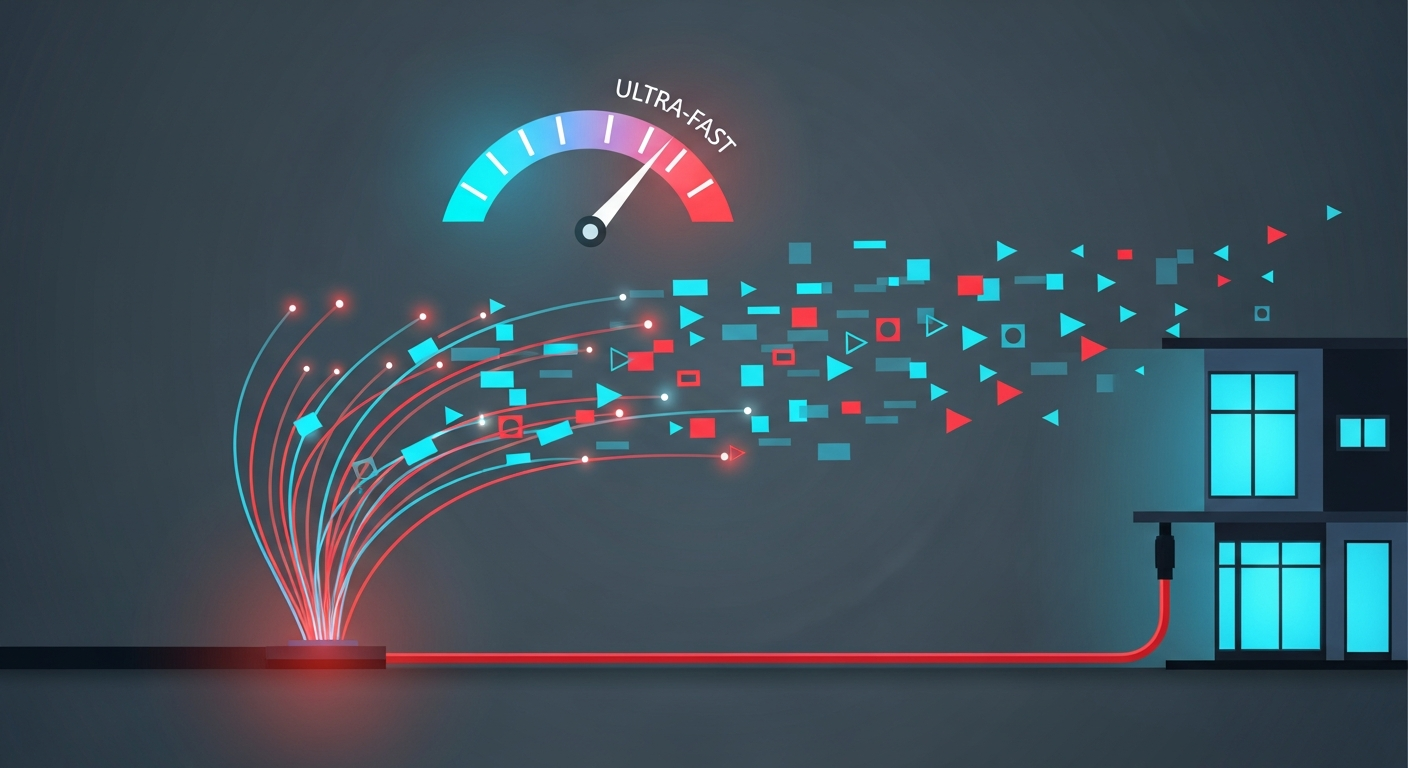
How Virgin's 'Docsis 3.1' network delivers your broadband speeds
M125
132Mbps
Average download speed
Upload: 20Mbps
Best for: 1-2 person households streaming 4K video.
M250
264Mbps
Average download speed
Upload: 25Mbps
Best for: Gaming and working from home simultaneously.
M500
516Mbps
Average download speed
Upload: 52Mbps
Best for: Large families with 10+ connected devices.
Gig1
1130Mbps
Average download speed
Upload: 104Mbps
Best for: Hardcore gamers and heavy cloud-storage users.
Note: Speeds shown are average download speeds. Actual speeds may vary based on location, network congestion, and equipment.
Check Your Virgin Broadband Speed
To get an accurate speed test result, follow these steps:
-
Connect via ethernet cable
For the most accurate results, connect your computer directly to your Hub using an ethernet cable. WiFi speeds are always slower than wired speeds. -
Close all applications and devices
Pause any downloads, streaming, or other internet activity. Disconnect other devices from your network if possible. -
Run the speed test
Visit speedtest.net or use the Virgin Media broadband speed test at virginmedia.com. Click 'Go' to start the test. -
Test multiple times
Run the test at different times of day, including peak hours (6pm-11pm). Take an average of your results. -
Compare to your package
You should receive at least 50% of your advertised speed over WiFi, or 80% via ethernet. If speeds are consistently lower, contact Virgin Media.
Fix Slow Virgin Media Broadband
Slow Virgin Media broadband can be frustrating, but many issues can be resolved without contacting support. Here are the most effective troubleshooting steps:
Restart Your Hub
The most effective first step is to restart your Hub. Unplug it from the mains, wait 30 seconds, and plug it back in. Wait 5-10 minutes for it to fully restart. This clears temporary issues and refreshes your connection.
Check WiFi Interference
WiFi signals can be blocked or interfered with by:
- Thick walls, especially brick or concrete
- Metal objects and appliances
- Microwaves, baby monitors, and cordless phones
- Neighbouring WiFi networks on the same channel
- Fish tanks and mirrors
Try moving your Hub to a central, elevated location away from these interference sources.
Use the 5GHz Band
Virgin Media Hubs broadcast on two frequencies: 2.4GHz and 5GHz. The 5GHz band is faster but has shorter range, while 2.4GHz has better range but slower speeds. If you're close to your Hub, connect to the 5GHz network for faster speeds. You can identify this by looking for a network name ending in '-5G' or by separating the bands in your Hub settings.
Check for Outages
Before spending time troubleshooting, check if there's a network outage in your area. Visit the Virgin Media service status page or use the My Virgin Media app to check for known issues. You can also check social media (Twitter/X @virginmedia) for reports from other customers in your area.
Set Up Your Virgin Media Hub
Setting up your new Virgin Media Hub is straightforward. Follow these steps:
-
Unbox your Hub
Remove the Hub, power adapter, and coaxial cable from the box. Keep the setup card with your WiFi details safe. -
Connect the coaxial cable
Connect the coaxial cable to the cable outlet on your wall (the threaded round socket). Screw it in finger-tight to ensure a secure connection. -
Connect the other end to your Hub
Connect the other end of the coaxial cable to the socket on the back of your Hub. Again, screw it in finger-tight. -
Connect the power
Plug the power adapter into your Hub and then into a wall socket. Switch on at the mains. -
Wait for the Hub to start up
The Hub will take 5-15 minutes to fully start up and connect to Virgin Media's network. The light will flash during this time. -
Connect to WiFi
Once the Hub light is solid white, you can connect your devices. Find your WiFi name and password on the bottom of your Hub or on the setup card.
Common Problems & Quick Fixes
Hub light is red - what does it mean?
Internet works but is very slow during peak hours
WiFi works but ethernet doesn't
Connection drops randomly throughout the day
Can't access Hub settings at 192.168.0.1
More Virgin Media Resources
If you need more help with your Virgin Media services, explore our related guides:
- Virgin Hub 5 Problems - Fix common router issues.
- Fix Virgin WiFi - Improve your signal and speed.
- Virgin Media Help Hub - All our Virgin support guides.
Need Still More Help?
- Phone Support: Call 150 from your Virgin Media phone or 0345 454 1111
- Live Chat: Available on the Virgin Media website
- My Virgin Media App: Manage your account and check for local faults
Sources & References
Written by James Thompson
Broadband & Home Technology Expert
James is a former broadband engineer with 10 years of experience installing and troubleshooting home internet and TV systems across the UK. He specialises in helping customers get the most from their Virgin Media services.
Last reviewed: January 2026