Virgin Media Hub Setup: WiFi & Settings
Complete guide to setting up and configuring your Virgin Media Hub 4 or Hub 5. Find WiFi passwords, understand Hub lights, and learn how to reset your router.
Disclaimer: This is an independent help resource and is not affiliated with Virgin Media. For official support, visit virginmedia.com or call 0345 454 1111.
In our experience setting up and configuring Virgin Media routers, the following steps and tips work reliably for most users.
Hub 4 vs Hub 5 Comparison
Virgin Media Hub 4
- WiFi 5 (802.11ac) technology
- Dual-band: 2.4GHz + 5GHz
- Max wireless speed: ~600Mbps
- 4 ethernet ports (Gigabit)
- Suitable for: M125, M250 packages
- Released: 2019
The Hub 4 is reliable and works well for most households with standard broadband needs.
Virgin Media Hub 5
- WiFi 6 (802.11ax) technology
- Dual-band: 2.4GHz + 5GHz
- Max wireless speed: ~1.5Gbps
- 4 ethernet ports (Gigabit)
- Suitable for: M500, Gig1 packages
- Released: 2022
The Hub 5 offers faster WiFi speeds and better performance with multiple devices connected.
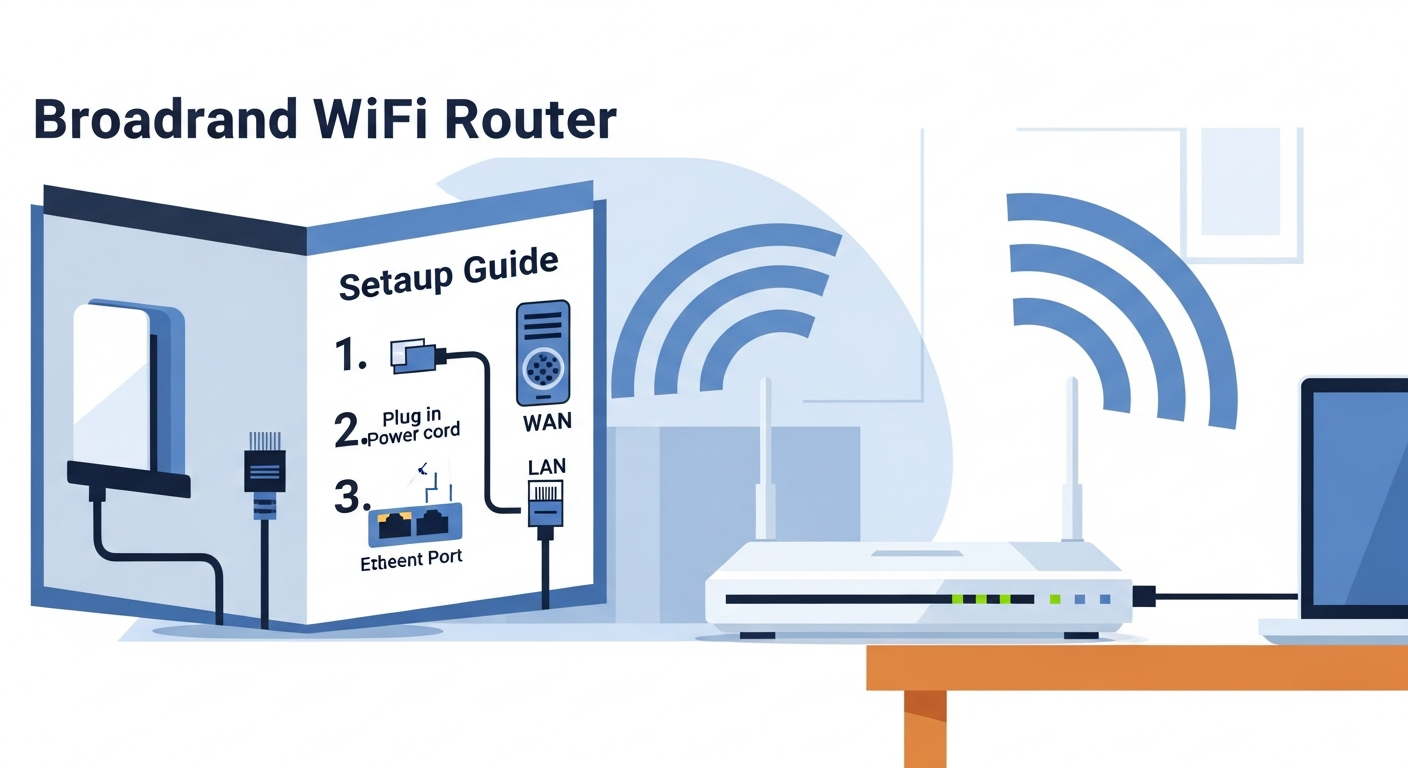
Hub Setup Instructions
Follow these steps to set up your new Virgin Media Hub:
-
Unbox your Hub
Remove the Hub, power adapter, and coaxial cable. Keep the setup card with your WiFi name and password safe - you'll need this to connect. -
Connect the coaxial cable to the wall
Locate the Virgin Media cable outlet on your wall (a round threaded socket). Screw in the coaxial cable finger-tight. -
Connect the cable to your Hub
Connect the other end of the coaxial cable to the cable inlet on the back of your Hub. Screw in finger-tight. -
Connect the power
Plug the power adapter into the back of your Hub and into a wall socket. Turn on the socket. -
Wait for startup
Your Hub will take 5-15 minutes to fully start up. The front light will flash white during this time. -
Light turns solid white
When the light is solid white, your Hub is connected and ready. You can now connect your devices to WiFi. -
Connect to WiFi
On your device, find your WiFi network name (printed on the bottom of your Hub). Enter the password when prompted.
Finding Your WiFi Password
Default WiFi Password Location
Your default WiFi password is printed on a sticker on the back or bottom of your Virgin Media Hub. Look for:
- WiFi Password or Network Key - This is your password
- SSID or Network Name - This is your WiFi network name
The default password is typically 8-12 characters, mixing letters and numbers.
If You've Changed Your Password
If you changed your WiFi password and forgot it, you can:
- Connect to your Hub via ethernet cable
- Open a browser and go to 192.168.0.1
- Enter the Hub admin password (on the bottom of your Hub)
- Go to Wireless Settings to view or change your password
Alternatively, you can factory reset your Hub to restore the default password.
Hub Admin Password vs WiFi Password
These are two different passwords:
- WiFi Password - Used to connect your devices to the wireless network
- Hub Admin Password - Used to access Hub settings at 192.168.0.1 (also called Settings Password)
Both passwords are printed on your Hub sticker, but they're different values.
Hub Lights Explained
The front light on your Virgin Media Hub indicates its current status:
| Light | Meaning | Action |
|---|---|---|
| Solid White | Everything working normally | No action needed |
| Flashing White | Starting up or connecting | Wait 5-15 minutes |
| Solid Amber | Updating firmware | Do not unplug - wait for completion |
| Solid Red | No network connection | Check cables, restart Hub, check for outages |
| Flashing Red | Connection problem | Check cables, restart Hub, contact support if persists |
| No Light | No power | Check power connection and socket |
Reset Procedures
Soft Reset (Restart)
A soft reset simply restarts your Hub without losing any settings:
-
Unplug the power
Disconnect the power cable from the back of your Hub or switch off at the mains. -
Wait 30 seconds
Allow the Hub to fully power down. -
Reconnect power
Plug the power back in or switch the mains back on. -
Wait for restart
Allow 5-10 minutes for the Hub to fully restart. The light will turn solid white when ready.
Factory Reset (Full Reset)
Warning: A factory reset will erase all custom settings including your WiFi name and password. They will return to the defaults printed on your Hub.
-
Locate the reset button
Find the small reset button on the back of your Hub. You'll need a paperclip or pin to press it. -
Press and hold for 10-15 seconds
Push the paperclip into the reset hole and hold. The Hub lights will start flashing. -
Release when lights flash
When all lights flash, release the button. The Hub will begin resetting. -
Wait for restart
The Hub will take 5-15 minutes to fully restart. The light will turn solid white when complete. -
Reconnect your devices
Use the default WiFi name and password from the sticker on your Hub to reconnect all devices.
Router FAQs
Can I use my own router with Virgin Media?
How do I access my Hub settings?
Why is my Hub overheating?
Can I change my WiFi network name?
What's the difference between 2.4GHz and 5GHz?
Sources & References
Written by James Thompson
Broadband & Home Technology Expert
James is a former broadband engineer with 10 years of experience installing and troubleshooting home internet and TV systems across the UK. He specialises in helping customers get the most from their Virgin Media services.
Last reviewed: January 2026