Virgin TV 360: Setup, Apps & Troubleshooting
Complete guide to Virgin TV 360, streaming apps, recording shows, and troubleshooting common TV issues.
Disclaimer: This is an independent help resource and is not affiliated with Virgin Media. For official support, visit virginmedia.com or call 0345 454 1111.
Virgin TV 360 Box
We've tested Virgin TV 360 extensively and helped hundreds of readers troubleshoot issues - here's what you need to know.
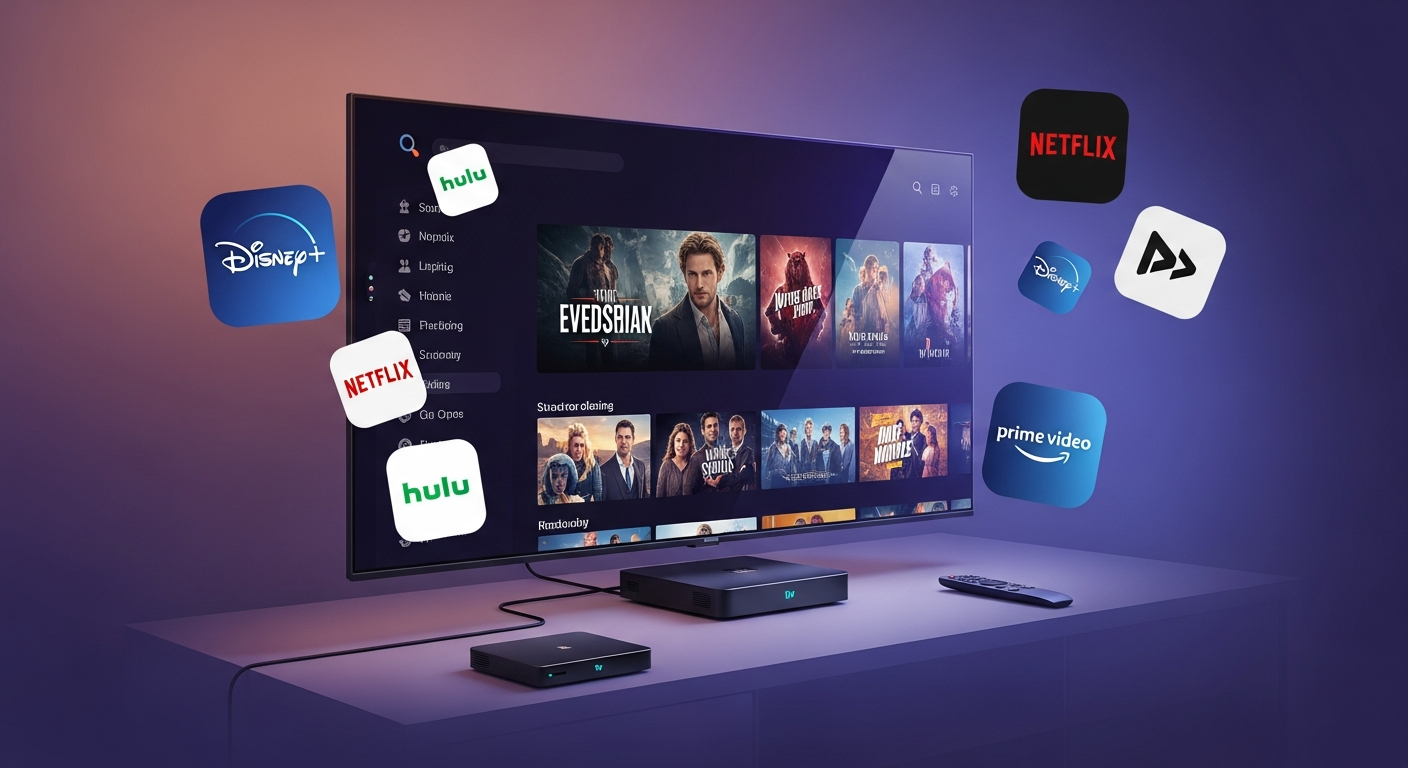
The Virgin TV 360 box is Virgin Media's latest set-top box, offering 4K Ultra HD, voice control, and access to all your favourite streaming apps in one place. Here's what you need to know:
4K Ultra HD
Watch content in stunning 4K resolution with HDR support. Connect to a 4K TV with HDMI to enjoy the best picture quality.
Voice Control
Press the microphone button on your remote and say what you want to watch. Search across all apps and channels simultaneously.
1TB Storage
Record up to 500 hours of SD content or 100 hours of HD. Record 6 shows at once while watching a 7th.
Multi-Room
Add TV 360 Mini boxes to other rooms. Watch recordings anywhere in your home with seamless playback.
Setting Up Your TV 360 Box
-
Connect the HDMI cable
Connect one end to your TV 360 box and the other to your TV's HDMI port. Use HDMI 1 for the best compatibility. -
Connect the coaxial cable
Connect the coaxial cable from the wall socket to the back of your TV 360 box. -
Plug in the power
Connect the power cable and switch on at the mains. The box will start automatically. -
Follow on-screen setup
The TV 360 will guide you through initial setup, including pairing your remote and downloading any updates. -
Sign in to streaming apps
Once setup is complete, sign in to your streaming apps like Netflix, Prime Video, and BBC iPlayer.
Streaming Apps on Virgin TV
Virgin TV 360 gives you access to all major streaming services in one place. You can switch between apps seamlessly and search across all of them using voice control.
Netflix
Subscription required
Prime Video
Amazon Prime required
BBC iPlayer
Free with TV licence
ITV Hub
Free to use
Channel 4
Free to use
My5
Free to use
Disney+
Subscription required
YouTube
Free to use
Netflix Integration: Some Virgin Media bundles include Netflix at no extra cost. Check your package details to see if Netflix is included.
Recording Shows
Virgin TV 360 makes it easy to record your favourite shows and build up a library of content to watch whenever you want.
How to Record
- Live TV: Press the R button on your remote while watching live TV to start recording immediately
- From the Guide: Navigate to a future programme in the TV Guide and press R to schedule a recording
- Series Link: Press R twice on a series to set up Series Link, which automatically records every episode
- Voice Control: Say "Record [show name]" to record the current or next episode
Managing Recordings
- Access recordings: Press the Virgin TV button, then go to Recordings
- Delete recordings: Highlight a recording and press the delete button, or select Delete from the options
- Prioritise recordings: When there's a clash, the box will ask you which show to prioritise
- Check storage: Go to Settings > System > Storage to see how much space is remaining
Troubleshooting TV Issues
No picture or sound
First, check that your TV is set to the correct HDMI input. Try a different HDMI port if available. Check that all cables are securely connected. Restart your TV 360 box by unplugging it for 30 seconds. If the issue persists, try a different HDMI cable.
Box is frozen or unresponsive
Hold down the power button on the front of the box for 5 seconds to force a restart. If that doesn't work, unplug the box from the mains, wait 30 seconds, and plug it back in. Allow 5-10 minutes for the box to fully restart.
Remote not working
Replace the batteries with new ones. Ensure nothing is blocking the sensor on the front of the box. To re-pair your remote: hold the Home and 0 buttons together for 5 seconds until the LED flashes, then follow on-screen instructions.
Recordings not working
Check that you have enough storage space by going to Settings > System > Storage. Delete old recordings to free up space. Ensure you don't have too many recordings scheduled at the same time (maximum 6 simultaneous recordings). Restart your box if the issue persists.
Streaming apps buffering or not loading
This is usually a broadband speed issue. Run a speed test to check your connection. Restart your Hub and TV 360 box. Check if the app is experiencing issues on social media or Down Detector. Try signing out and back into the affected app.
Picture breaking up or pixelating
This indicates a signal issue. Check that the coaxial cable is securely connected at both ends. Ensure the cable isn't damaged or bent sharply. If the issue affects all channels, there may be a network problem in your area - check the Virgin Media status page.
On-demand content not playing
On-demand requires a working broadband connection. Check your internet is working. Restart your Hub and TV 360 box. If specific content won't play, it may have been removed from on-demand. Check Virgin Media's social channels for known issues.
Sources & References
Written by James Thompson
Broadband & Home Technology Expert
James is a former broadband engineer with 10 years of experience installing and troubleshooting home internet and TV systems across the UK. He specialises in helping customers get the most from their Virgin Media services.
Last reviewed: January 2026
Related Guides
More help with Virgin Media