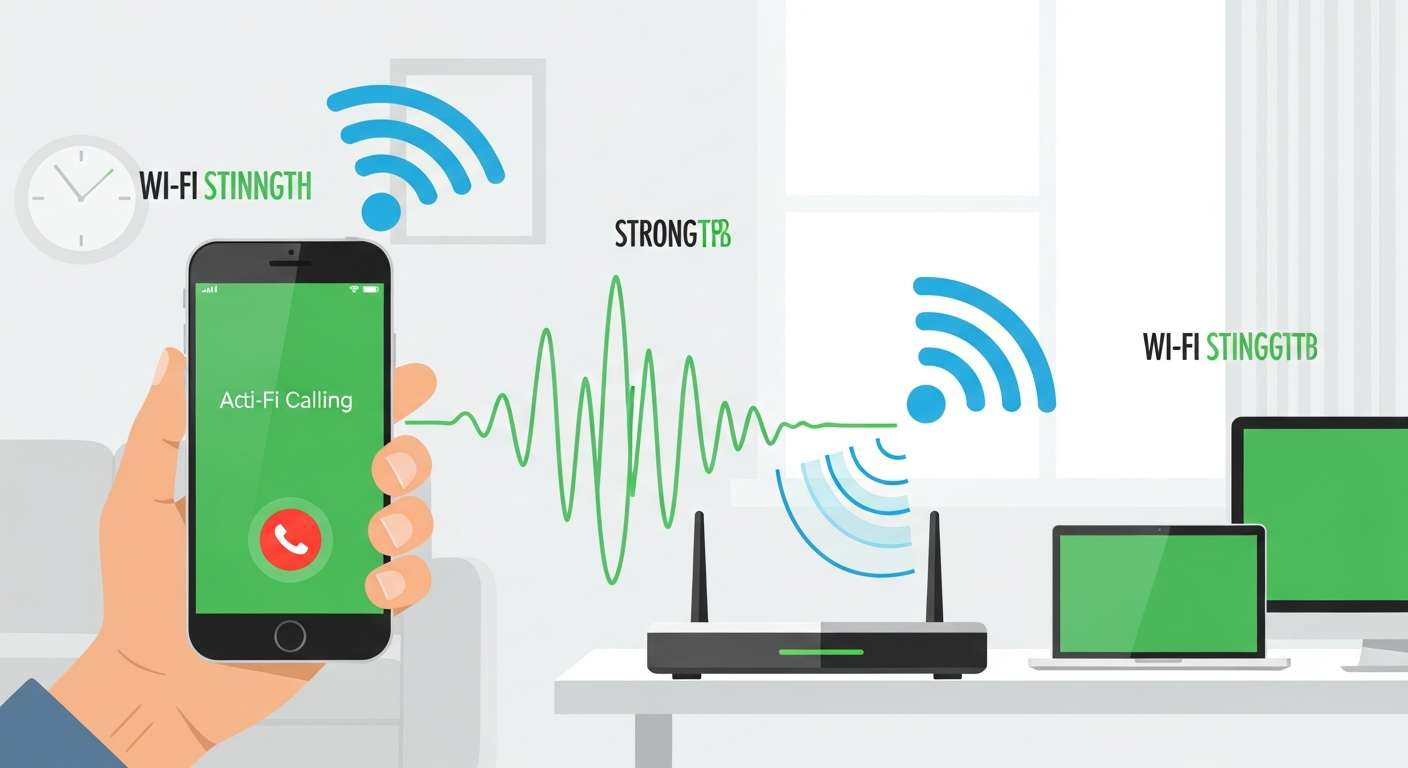
Struggling with poor mobile signal indoors? You are not alone. Millions of people across the United Kingdom experience weak or non-existent mobile reception inside their homes, offices, and other buildings. Thick walls, double glazing, energy-efficient insulation, and rural locations can all block mobile signals from reaching your phone. WiFi calling is a built-in feature on modern smartphones that solves this problem by routing your calls and texts through your broadband internet connection instead. In this comprehensive guide, we explain exactly what WiFi calling is, how to set it up on every major UK network, and how to troubleshoot common issues so you never miss an important call again.
Key Takeaways
- WiFi calling lets you make and receive calls over your home broadband when mobile signal is weak
- It is free on O2, EE, Vodafone, and Three and uses your normal inclusive minutes
- No separate app is needed — WiFi calling is built into your phone's dialler
- You need a compatible handset and a broadband connection with at least 2 Mbps speed
- Emergency calls over WiFi may not transmit your exact location — always state your address
What Is WiFi Calling and How Does It Work?
WiFi calling, sometimes referred to as Voice over WiFi (VoWiFi), is a technology that allows your smartphone to make and receive phone calls and text messages using a wireless internet connection rather than a traditional mobile network signal. When you enable WiFi calling on your phone, it creates a secure, encrypted connection between your device and your mobile network's servers through your WiFi router and broadband line.
From a technical perspective, WiFi calling works by encapsulating your voice data into Internet Protocol (IP) packets, which are then transmitted over your WiFi network to your broadband provider's infrastructure and onwards to your mobile network. The process uses a technology called IPsec (Internet Protocol Security) to encrypt the connection, ensuring that your calls remain private and secure. Your mobile network then routes the call to its destination as if it had been placed over a normal mobile mast.
The beauty of WiFi calling is that it is completely seamless. Unlike third-party calling apps such as WhatsApp or Skype, WiFi calling uses your phone's native dialler application. You dial numbers exactly as you normally would, and the person you are calling sees your regular mobile number on their screen. They have no way of knowing whether you are calling over WiFi or over the mobile network. Similarly, incoming calls ring your phone as normal regardless of whether they arrive via WiFi or mobile signal.
Most modern smartphones can also perform a seamless handover between WiFi calling and the mobile network. If you start a call on WiFi and then walk outside where mobile signal is strong, your phone will transition the call to the mobile network without dropping it. This handover process typically takes less than a second and is imperceptible to both parties on the call.
Why Should You Use WiFi Calling?
The primary reason to enable WiFi calling is to solve indoor signal problems. According to Ofcom's latest Connected Nations report, approximately 9% of UK premises still cannot receive a reliable 4G signal indoors from any mobile operator. Even in areas with generally good outdoor coverage, building materials such as concrete, brick, metal cladding, and modern energy-efficient glass can reduce mobile signal strength by 50-80%. If you have ever noticed that your phone shows full signal bars outside your front door but drops to one bar or no service once you step inside, WiFi calling is the solution.
A significant advantage of WiFi calling is that it is completely free on all major UK networks. Calls made over WiFi are deducted from your inclusive minutes allowance exactly as if you had placed them over the mobile network. If you have an unlimited calls plan, your WiFi calls are unlimited too. Text messages sent over WiFi are likewise deducted from your inclusive texts allowance. There are no additional charges, no premium rates, and no hidden fees. This makes WiFi calling fundamentally different from using international calling apps or premium services.
Unlike apps such as WhatsApp, FaceTime, or Skype, WiFi calling does not require the other person to have any specific app installed or even an internet connection. You can call any phone number — landlines, mobiles, and even international numbers — using WiFi calling. The recipient simply receives a normal phone call. This makes WiFi calling especially useful for contacting businesses, GP surgeries, government helplines, and anyone who might not use messaging apps.
WiFi calling also preserves your network coverage experience in areas where your mobile provider has weaker signal. Instead of switching to a different network or buying a signal booster, you can use the broadband connection you already pay for to maintain full connectivity inside your home or office.
How to Enable WiFi Calling on O2
O2 offers WiFi calling on a wide range of devices and includes the feature at no extra cost on all pay monthly and pay-as-you-go plans. To use O2 WiFi calling, you need a compatible handset, an active O2 SIM card, and a WiFi connection with a minimum speed of 2 Mbps.
O2 WiFi Calling on iPhone
- Ensure your iPhone is running the latest version of iOS by going to Settings > General > Software Update
- Open the Settings app on your iPhone
- Tap on Mobile Data (or Cellular on some models)
- Select WiFi Calling
- Toggle the switch next to WiFi Calling on This iPhone to the on position
- You may be asked to confirm your emergency address — enter your home address accurately
- Once enabled, you should see "O2 WiFi" or a WiFi calling icon in your status bar when connected to WiFi
O2 WiFi Calling on Android
- Make sure your Android phone has the latest software update installed via Settings > System > Software Update
- Open the Settings app
- Navigate to Connections or Network & Internet (this varies by manufacturer)
- Tap on WiFi Calling or look for it under SIM card settings
- Toggle WiFi Calling to on
- On Samsung devices, you may find it under Settings > Connections > WiFi Calling
- On Google Pixel devices, go to Settings > Network & Internet > Mobile Network > Advanced > WiFi Calling
O2 Tip: If you do not see the WiFi Calling option in your settings, your device may not be compatible, or you may need to update your carrier settings. Try removing and reinserting your SIM card, then restart your phone. You can also check the O2 signal and coverage guide for further help.
How to Enable WiFi Calling on EE
EE was one of the first UK networks to roll out WiFi calling and supports it across a broad range of devices. EE WiFi calling works on both pay monthly and pay-as-you-go plans, and there are no additional charges for using the feature within the UK.
EE WiFi Calling on iPhone
- Update your iPhone to the latest iOS version via Settings > General > Software Update
- Go to Settings > Mobile Data > WiFi Calling
- Toggle WiFi Calling on This iPhone to on
- Enter your emergency address when prompted — this is used if you call 999 over WiFi
- You should see "EE WiFi" or a small WiFi icon near your signal bars in the status bar
EE WiFi Calling on Android
- Ensure your phone software is up to date
- Open Settings and search for "WiFi Calling" using the search bar at the top
- Alternatively, navigate to Settings > Connections > WiFi Calling (Samsung) or Settings > Network & Internet > Mobile Network > WiFi Calling (Pixel)
- Toggle the feature on
- You may need to accept terms and conditions on first use
- A WiFi calling icon should appear in your notification bar when the feature is active
EE also allows you to use WiFi calling abroad, which means you can connect to hotel or airport WiFi in other countries and make calls as if you were in the UK. This can help you avoid international roaming charges, though you should check EE's current terms for any fair usage limits.
How to Enable WiFi Calling on Vodafone
Vodafone WiFi calling is available on pay monthly plans and a growing number of pay-as-you-go plans. The feature is free to use and calls are charged at standard UK rates from your inclusive allowance.
Vodafone WiFi Calling on iPhone
- Update to the latest iOS version
- Navigate to Settings > Mobile Data > WiFi Calling
- Switch on WiFi Calling on This iPhone
- Register your emergency address when prompted
- Look for "VF WiFi" or a WiFi calling indicator in your status bar
Vodafone WiFi Calling on Android
- Update your phone to the latest software version
- Open Settings and go to Connections or Network settings
- Find WiFi Calling and toggle it on
- On Samsung devices: Settings > Connections > WiFi Calling
- On other Android devices, search for "WiFi Calling" in the Settings search bar
- Accept any terms and register your location for emergency services
Vodafone recommends a broadband speed of at least 2 Mbps for reliable WiFi calling. If you experience issues, try moving closer to your WiFi router or connecting to the 5 GHz WiFi band if your router supports it, as this typically offers less interference than the 2.4 GHz band.
How to Enable WiFi Calling on Three (inTouch)
Three brands its WiFi calling service as Three inTouch, though in practice the setup is very similar to other networks. Three WiFi calling is available on pay monthly and pay-as-you-go plans at no extra cost.
Three WiFi Calling on iPhone
- Ensure iOS is fully updated
- Go to Settings > Mobile Data > WiFi Calling
- Enable WiFi Calling on This iPhone
- Confirm your emergency address details
- The status bar will show "3 WiFi" when connected and active
Three WiFi Calling on Android
- Update your phone software to the latest version
- Go to Settings > Connections > WiFi Calling (Samsung) or Settings > Network & Internet > Mobile Network > WiFi Calling (Pixel and other Android devices)
- Toggle WiFi Calling on
- Three may prompt you to download a small configuration update — allow this to complete
- Restart your phone if the WiFi calling indicator does not appear immediately
Three also offers WiFi calling abroad on selected plans, allowing you to make and receive UK calls over foreign WiFi networks. This pairs well with Three's Go Roam destinations for comprehensive international connectivity.
Compatible Devices for WiFi Calling in the UK
WiFi calling compatibility depends on both your handset and your network. Not every phone supports WiFi calling on every network, as each operator must certify devices individually. However, the list of supported devices has grown substantially in recent years.
| Device | O2 | EE | Vodafone | Three |
|---|---|---|---|---|
| iPhone 7 and later | Yes | Yes | Yes | Yes |
| Samsung Galaxy S21 and later | Yes | Yes | Yes | Yes |
| Samsung Galaxy A series (2022+) | Yes | Yes | Varies | Yes |
| Google Pixel 6 and later | Yes | Yes | Yes | Yes |
| OnePlus (recent models) | Varies | Yes | Varies | Yes |
| Xiaomi (recent models) | Limited | Varies | Limited | Varies |
Apple iPhones generally have the broadest WiFi calling compatibility across all four networks, largely because Apple works closely with operators to certify each model. If you own an iPhone 7 or newer running a current version of iOS, WiFi calling should be available on any major UK network. Samsung Galaxy flagship devices (S series and Z series) also enjoy excellent cross-network support.
Google Pixel phones have gained strong WiFi calling support across UK networks, particularly from Pixel 6 onwards. Budget and mid-range Android phones from manufacturers such as Xiaomi, Oppo, and Motorola have more variable support — some models work on certain networks but not others. If WiFi calling is important to you and you are choosing a new phone, check your network's compatibility list before purchasing.
WiFi Calling vs VoLTE: What Is the Difference?
WiFi calling and VoLTE (Voice over LTE) are related technologies that serve different purposes, and understanding the distinction helps you make the most of both features. VoLTE allows your phone to make voice calls over the 4G LTE mobile network rather than falling back to the older 3G network. WiFi calling, on the other hand, routes calls over your wireless broadband connection.
With VoLTE, your phone can maintain a 4G data connection during a voice call, which means you can browse the web, check email, or use apps while talking. Before VoLTE, making a call on most networks would drop your phone back to 3G, significantly reducing your data speed. VoLTE also provides noticeably better call quality with HD Voice support, delivering clearer, more natural-sounding conversations. All four major UK networks now support VoLTE as standard.
The key difference is the connection medium. VoLTE uses mobile network infrastructure and requires adequate 4G signal strength. WiFi calling uses your broadband internet connection and requires a stable WiFi network. In practice, both technologies work together. When you have strong mobile signal, your phone uses VoLTE for the best call quality. When mobile signal is weak but WiFi is available, your phone switches to WiFi calling. Many modern phones handle this transition automatically and seamlessly.
| Feature | WiFi Calling | VoLTE |
|---|---|---|
| Connection type | WiFi / broadband | 4G mobile network |
| Requires mobile signal | No | Yes (4G) |
| HD Voice quality | Yes | Yes |
| Data during calls | Yes (via WiFi) | Yes (via 4G) |
| Best for | Indoor / weak signal areas | Outdoor / good coverage areas |
| Emergency location | Registered address only | Automatic GPS location |
Common Problems and Fixes
WiFi Calling Not Working
If WiFi calling is not working on your phone, there are several things to check. First, confirm that your device is on the compatible devices list for your specific network. Even if your phone supports WiFi calling in general, it may not be certified for your particular operator. Next, ensure that WiFi calling is actually toggled on in your phone settings — it can sometimes be switched off by software updates or SIM card changes.
Try these troubleshooting steps in order:
- Toggle WiFi calling off, wait 30 seconds, and toggle it back on
- Turn aeroplane mode on for 10 seconds, then turn it off again
- Restart your phone completely
- Remove your SIM card, clean the contacts gently, and reinsert it
- Check for a phone software update and install any available updates
- Reset your network settings (note: this will remove saved WiFi passwords)
- Contact your network provider to ensure WiFi calling is enabled on your account
If none of these steps resolve the issue, your broadband connection may be blocking the necessary network ports. Some corporate firewalls and restrictive network configurations can prevent WiFi calling from functioning. Try connecting to a different WiFi network to rule this out. For persistent WiFi issues, a router restart or firmware update may help.
Poor Call Quality Over WiFi
If your WiFi calls sound choppy, distorted, or keep breaking up, the issue is almost certainly related to your internet connection rather than your phone or mobile network. WiFi calling requires a stable connection with consistent bandwidth — brief interruptions that would be unnoticeable when browsing the web can cause audible problems during a real-time voice call.
To improve WiFi call quality, start by checking your broadband speed. A minimum of 2 Mbps is recommended, but 5 Mbps or more provides a much better experience, especially if other devices in your household are streaming video or downloading large files simultaneously. Move closer to your WiFi router if possible, as walls and floors between you and the router reduce both speed and connection stability.
If your WiFi signal is weak in certain rooms, consider using a WiFi extender, mesh WiFi system, or a powerline adapter to improve coverage throughout your home. Switching from the 2.4 GHz WiFi band to the 5 GHz band can also help, as the 5 GHz band is less congested and offers faster speeds over shorter distances. Check your router settings to ensure QoS (Quality of Service) is configured to prioritise voice traffic if the option is available.
Emergency Calls on WiFi Calling: Important Safety Information
Safety Warning: When you call 999 or 112 over WiFi calling, the emergency services may not be able to determine your exact location automatically. Unlike calls over the mobile network, which can be traced to a nearby mast, WiFi calls are routed through your broadband provider and may only transmit the address you registered when setting up WiFi calling. If you move to a different location, always clearly state your full address and postcode when speaking to emergency services. Update your registered emergency address in your phone settings if you move home.
All four UK networks support 999 calls over WiFi calling, but the location limitation is an important consideration. If you are in a situation where you cannot speak — for example, if calling the police during a break-in — the operator may only have your registered address, which could be incorrect if you are at a friend's house, a hotel, or your workplace. For this reason, Ofcom recommends that if you have any mobile signal at all, even just one bar, you should use the mobile network for emergency calls rather than WiFi calling, as the mobile network can provide more accurate location data.
Tips for the Best WiFi Calling Quality
Getting the most out of WiFi calling requires a good broadband setup and some awareness of how your home network functions. Follow these tips to ensure consistently clear calls over WiFi.
- Position your router centrally: Place your WiFi router in the middle of your home if possible, away from walls, metal objects, and electrical appliances that can interfere with the signal. Avoid placing it inside a cupboard or behind furniture.
- Use the 5 GHz band: If your router supports dual-band WiFi, connect your phone to the 5 GHz network. This band is faster and less prone to interference from neighbouring networks, microwaves, and baby monitors.
- Keep your broadband speed above 5 Mbps: While 2 Mbps is the minimum, having at least 5 Mbps available ensures smooth calls even when other household devices are online. Consider upgrading your broadband if you regularly experience buffering or slow speeds.
- Reduce network congestion: If multiple family members are streaming 4K video, gaming, or downloading large files, your WiFi call quality may suffer. Try to avoid heavy bandwidth usage during important calls.
- Update your router firmware: Router manufacturers regularly release firmware updates that improve performance and fix bugs. Log into your router's admin panel to check for available updates, or refer to your router setup guide for instructions.
- Consider a mesh WiFi system: If your home has dead spots where WiFi signal is weak, a mesh WiFi system with multiple access points can provide consistent coverage throughout your property, ensuring reliable WiFi calling in every room.
- Keep your phone updated: Software updates for your phone often include improvements to WiFi calling performance and connectivity. Enable automatic updates to ensure you always have the latest version.
Pro Tip: If you are using Virgin Media broadband, enabling the Intelligent WiFi feature on your Hub can help optimise your connection for WiFi calling by automatically managing channel selection and device steering. Check our Virgin Media WiFi troubleshooting guide for more details on optimising your home network.
Frequently Asked Questions
Is WiFi calling free in the UK?
Yes, WiFi calling is completely free on all four major UK networks — O2, EE, Vodafone, and Three. Calls and texts made over WiFi are deducted from your inclusive allowance exactly as if you were using mobile signal. There are no additional charges, setup fees, or subscription costs. The only requirement is that you have an active plan with inclusive minutes and a WiFi connection.
Does WiFi calling use my mobile data allowance?
No, WiFi calling does not use any of your mobile data allowance. It uses your WiFi internet connection instead, which runs on your home or office broadband. A typical WiFi voice call uses approximately 0.5 to 1 MB per minute of broadband data, which is negligible even on basic broadband packages. However, if you are connected to a public WiFi hotspot with data limits, the usage would count against that hotspot's allowance.
Can I use WiFi calling abroad to avoid roaming charges?
This depends on your network provider. EE and Three generally allow WiFi calling abroad, meaning you can connect to a foreign WiFi network and make calls to UK numbers as if you were in the UK, potentially avoiding roaming charges. O2 and Vodafone have more restrictions and may not support WiFi calling outside the UK on all plans. Always check your network's specific terms and fair usage policies before relying on WiFi calling abroad, and remember that calls to local numbers in the country you are visiting may not be possible over WiFi calling.
Why is WiFi calling not showing in my phone settings?
If the WiFi calling option does not appear in your phone settings, there are several possible reasons. Your handset may not be compatible with your network's WiFi calling service — check your network's website for a list of supported devices. Your phone may need a software update or carrier settings update. Your SIM card might be an older model that does not support WiFi calling, in which case you can request a free replacement SIM from your provider. Finally, some networks require you to have a 4G-enabled plan before WiFi calling will activate.
Is WiFi calling as reliable as regular mobile calls?
WiFi calling reliability depends primarily on the quality and stability of your broadband internet connection. With a stable broadband connection of at least 2 Mbps and a strong WiFi signal, WiFi calls are generally as clear and reliable as regular mobile calls, with HD Voice quality. However, if your broadband is slow, your WiFi signal is weak, or your network is heavily congested, you may experience issues such as dropped calls, audio delays, or reduced sound quality. Investing in a good router and ensuring adequate broadband speed will give you the best experience.