O2 eSIM: Setup, Activation & Troubleshooting
Everything you need to know about O2 eSIM. Learn what an eSIM is, check device compatibility, activate your eSIM, and troubleshoot common issues with our comprehensive guide.
Disclaimer: This is an independent help resource and is not affiliated with O2, Telefonica UK, or Virgin Media O2. For official support, visit o2.co.uk
We've helped thousands of readers set up their eSIMs, and here's everything you need to know to get started with O2 eSIM.
What is an eSIM?
An eSIM (embedded SIM) is a digital SIM card built directly into your phone. Unlike a traditional physical SIM card that you insert into your device, an eSIM is a small chip embedded in your phone that can be programmed with your mobile network information.
Benefits of eSIM
- No Physical Card Needed: Activate your O2 plan without waiting for a SIM card to arrive
- Dual SIM Capability: Use two phone numbers on one device (eSIM + physical SIM)
- Quick Switching: Switch between networks or plans more easily
- Travel Friendly: Add local data plans when abroad without swapping SIMs
- More Secure: Cannot be physically removed or lost like a traditional SIM
- Environmentally Friendly: Reduces plastic waste from SIM cards and packaging
Important: eSIM works exactly the same as a physical SIM for calls, texts, and data. The only difference is how it is installed on your device.
Compatible Devices
Not all phones support eSIM. Here are the devices compatible with O2 eSIM:
Apple iPhone
- iPhone XR, XS, XS Max
- iPhone 11, 11 Pro, 11 Pro Max
- iPhone SE (2nd and 3rd generation)
- iPhone 12, 12 mini, 12 Pro, 12 Pro Max
- iPhone 13, 13 mini, 13 Pro, 13 Pro Max
- iPhone 14, 14 Plus, 14 Pro, 14 Pro Max
- iPhone 15, 15 Plus, 15 Pro, 15 Pro Max
- iPhone 16, 16 Plus, 16 Pro, 16 Pro Max
Samsung Galaxy
- Samsung Galaxy S20, S20+, S20 Ultra (and later S series)
- Samsung Galaxy S21, S22, S23, S24 series
- Samsung Galaxy Z Fold series (Fold, Fold2, Fold3, Fold4, Fold5, Fold6)
- Samsung Galaxy Z Flip series (Flip, Flip3, Flip4, Flip5, Flip6)
- Samsung Galaxy Note 20, Note 20 Ultra
Google Pixel
- Google Pixel 3, 3 XL, 3a, 3a XL
- Google Pixel 4, 4 XL, 4a, 4a 5G
- Google Pixel 5, 5a
- Google Pixel 6, 6 Pro, 6a
- Google Pixel 7, 7 Pro, 7a
- Google Pixel 8, 8 Pro, 8a
- Google Pixel 9, 9 Pro
Other Devices
- Huawei P40, P40 Pro (with limitations)
- Oppo Find X3 Pro, Find X5 Pro
- Sony Xperia 1 III, 5 III, 1 IV, 5 IV
- Apple Watch (cellular models)
- iPad Pro, iPad Air (cellular models)
Note: Your device must be unlocked or locked to O2 to use an O2 eSIM. Devices locked to other networks will not work.
In our experience: The most common issue readers report is trying to activate an eSIM on a phone that's locked to another network. Check your phone is unlocked before ordering.
How to Activate O2 eSIM
Activating your O2 eSIM is straightforward. Here is how to do it:
For New Customers
- Order an eSIM Plan: When ordering a new O2 plan online or in-store, select eSIM as your SIM type.
- Receive Your QR Code: O2 will email you a QR code, or you can find it in your My O2 account.
- Connect to WiFi: Ensure your phone is connected to a stable WiFi network.
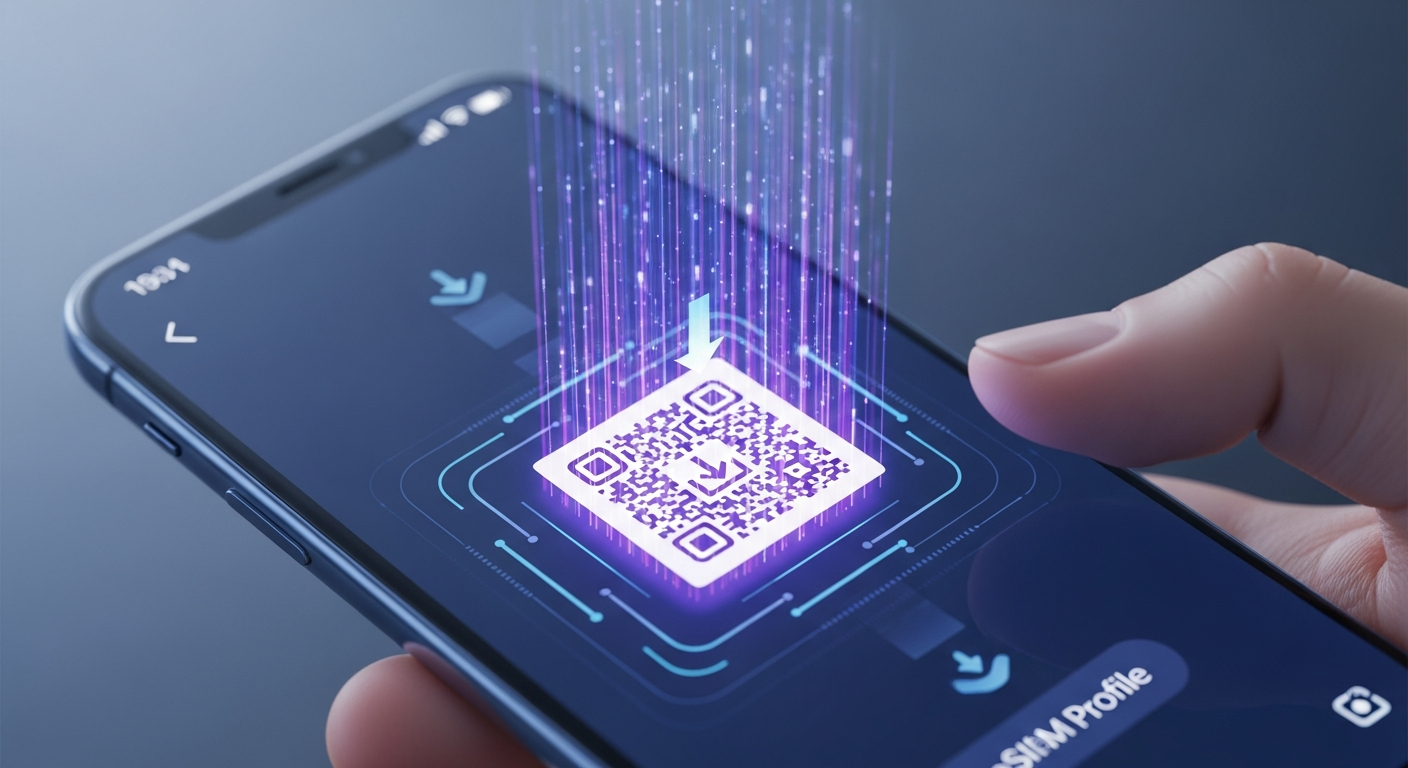
- Scan the QR Code: Go to your phone settings and scan the eSIM QR code (see device-specific instructions below).
- Confirm Activation: Follow the on-screen prompts to complete the eSIM installation.
- Restart Your Phone: Restart your device to ensure the eSIM is fully activated.
Quick tip from our team: Take a screenshot of your QR code and save it somewhere safe. You'll need it again if you reset your phone or switch devices.
iPhone eSIM Setup
- Go to Settings on your iPhone.
- Tap Mobile Data or Cellular.
- Tap Add eSIM or Add Cellular Plan.
- Select Use QR Code and scan the O2 eSIM QR code.
- Follow the prompts to complete activation.
Android eSIM Setup
- Go to Settings on your Android phone.
- Tap Network & Internet or Connections.
- Tap SIMs or SIM Card Manager.
- Tap Add eSIM or Download SIM.
- Scan the O2 eSIM QR code when prompted.
- Complete the setup by following on-screen instructions.
Tip: Keep your QR code safe. You may need it again if you reset your phone or switch to a new device.
Switching from Physical SIM to eSIM
If you are an existing O2 customer with a physical SIM, you can switch to an eSIM:
- Check Compatibility: Ensure your phone supports eSIM (see compatible devices list above).
- Request eSIM: Contact O2 via the My O2 app, call 202, or visit an O2 store to request an eSIM swap.
- Receive QR Code: O2 will provide you with a QR code for your new eSIM.
- Deactivate Physical SIM: When you activate the eSIM, your physical SIM will be deactivated.
- Scan and Activate: Follow the activation steps above to install your eSIM.
- Keep Your Number: Your phone number transfers automatically to your new eSIM.
Important: The eSIM swap is usually instant, but allow up to 24 hours for full activation in some cases.
Troubleshooting
If you are having issues with your O2 eSIM, try these solutions:
eSIM Will Not Activate
- Check WiFi Connection: Ensure you have a stable WiFi connection during activation
- QR Code Issues: Make sure you are scanning the correct, undamaged QR code
- Device Compatibility: Verify your device supports eSIM and is unlocked or O2-locked
- Restart Device: Try restarting your phone and scanning the QR code again
- Contact O2: If problems persist, contact O2 for a new QR code
No Signal After Activation
- Wait a Few Minutes: Sometimes it takes a few minutes for the network to register
- Toggle Airplane Mode: Turn airplane mode on and off to refresh the connection
- Restart Your Phone: A restart often resolves connectivity issues
- Check eSIM is Selected: Ensure the O2 eSIM is set as your active mobile data line
- Network Settings Reset: Reset network settings (Settings > General > Reset > Reset Network Settings)
Cannot Use Dual SIM
- Check Settings: Go to Settings > Cellular/Mobile Data and ensure both lines are enabled
- Set Default Line: Choose which line to use for calls, texts, and data
- Carrier Limitations: Some features may not work on both lines simultaneously
Data Loss Warning: Deleting an eSIM from your device will deactivate it. You will need a new QR code from O2 to reactivate.
eSIM FAQs
Can I transfer my eSIM to a new phone?
Can I use eSIM and a physical SIM at the same time?
Is there a cost to switch to eSIM?
What happens if I reset my phone?
Can I use eSIM abroad for roaming?
Do all O2 plans support eSIM?
More O2 eSIM Resources
If you need further assistance with your O2 eSIM:
- Call 202: Free from your O2 mobile (Mon-Fri 8am-9pm, Sat-Sun 8am-8pm)
- Call 0344 809 0202: From any other phone
- My O2 App: Manage your eSIM and chat with support
- Visit an O2 Store: Get in-person help with eSIM activation
- O2 Help Centre: Browse all O2 help topics
Sources & References
Written by Sarah Mitchell
Mobile & Broadband Specialist
Sarah has over 8 years of experience helping UK consumers navigate mobile and broadband issues. Previously worked in telecommunications customer service and now writes guides to help others avoid common pitfalls.
Last reviewed: January 2026